Quick-Start Guide
Objective
This guide will help you get to grips with your new Linux Mint system quickly.
This guide answers the following questions
- What are the main differences between Windows and your new Linux system?
- How do I sign in?
- How do I connect to the Internet?
- How do I get started with my new Desktop?
- How do I use the Menu?
- How do I use the Firefox web browser?
- How do I create letters, spreadsheets, presentations, and more?
- How do I install new software?
- How do I install a printer?
- How do I use my scanner?
- How do I use external storage?
- How do I update my system?
- How does security work on Linux?
What changes compared with your old Windows system?
1. Introduction
For a computer to be usable, it needs an operating system. The operating system provides a working environment in the form of a “virtual desktop” and lets you run software, manage files, connect to the Internet, and use peripherals such as a webcam, printer or monitor.
The manufacturer Apple uses its own operating system, called “ macOS ”, whereas most other manufacturers (Lenovo, Dell, HP, Asus, Acer) use the operating system developed by Microsoft, called “Windows”. These systems are pre-installed on the computers you buy through traditional retail channels.
As the illustration below shows, there is another choice: Linux. You will rarely find it pre-installed in ordinary shops, because this operating system does not follow the usual commercial model — it is not a product you have to buy.
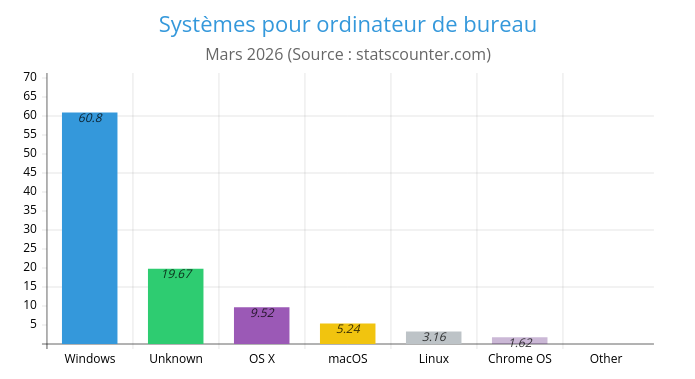
So how does it work? The GNU/Linux operating system — that is its full name, though we usually say “Linux” for simplicity — is developed for personal computers by communities committed to free, ethical computing that is accessible to everyone. It can therefore be obtained freely by downloading it from the Internet, and it runs on the great majority of computers, old and new alike, whereas systems from Apple and Microsoft increasingly require newer and ever more powerful machines.
Because several 1 communities develop this operating system, there are many different “versions”, known as distributions. Some distributions focus on a wealth of features; others favor an elegant user interface; still others specialize in a particular field, such as computer-assisted music or cybersecurity. Some are specifically designed to breathe new life into aging computers, including machines more than fifteen years old.
2. Why linux4all chose Linux Mint
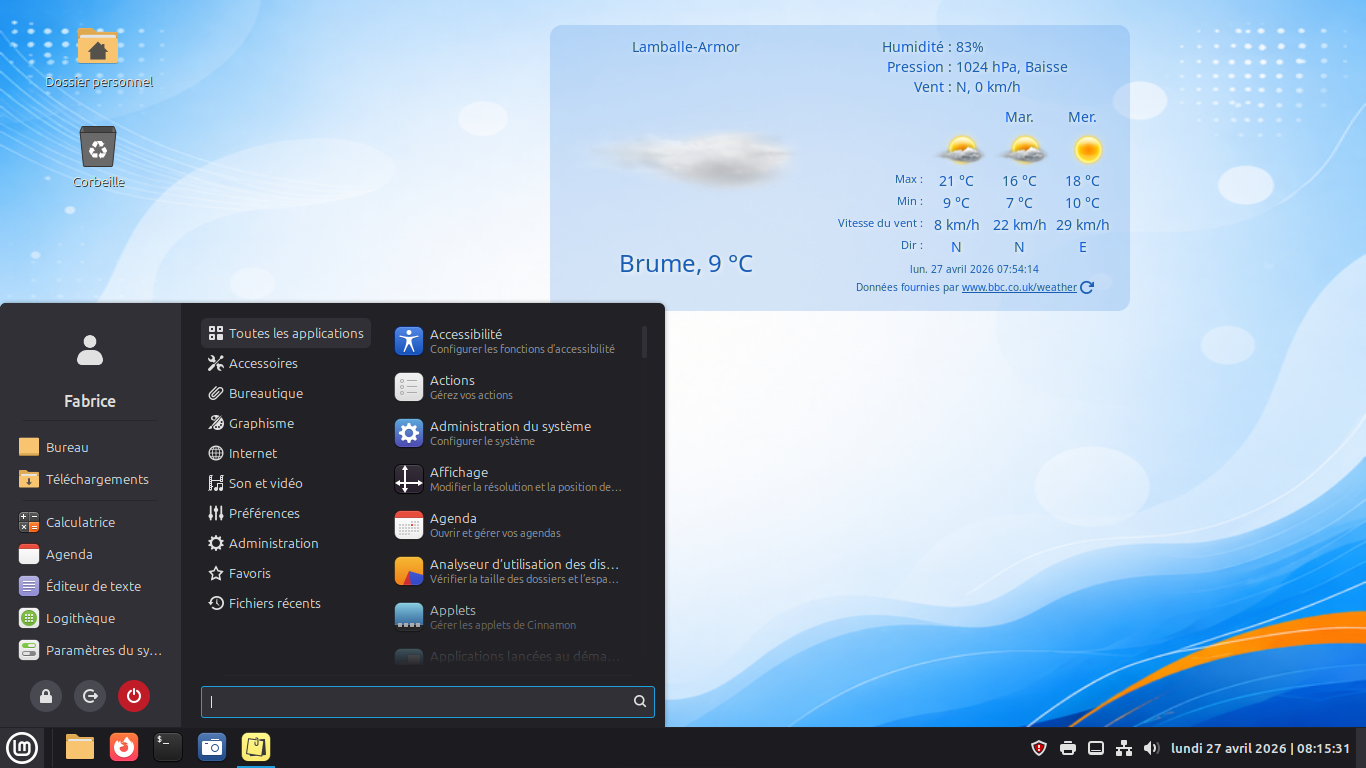
linux4all chose the Linux Mint distribution because it is one of the most popular and easiest to use, and because it feels reassuringly familiar to people coming from Windows. Linux Mint is available with three desktop environments, and we chose Cinnamon. The illustration below shows the Linux Mint Cinnamon Desktop. And there is no need to worry: almost everything can be customized — colours, sizes, the position of individual elements, and much more.
3. What is the difference between Windows and a Linux system?
From a technical point of view: almost everything changes! But this guide is written for users, not technicians, so there is no need to concern yourself with what is happening under the hood. After all, it is still a computer: it has an engine (the processor), RAM (its ability to handle several tasks at once), storage space (a traditional hard drive or an SSD), and a graphics card responsible for displaying what you see on screen.
From a functional — or practical — point of view: there is equally little to worry about. You still have a Desktop, a Menu for launching applications that open in windows, and files that you organise into folders so that you can find them again.
So what makes Linux systems such an appealing alternative?
- Because they are freely accessible, with no compulsory financial contribution 2, making them available to everyone without being driven by a commercial model.
- Because they are “transparent”: anyone can see how they are built — there are no manufacturing secrets — and they respect your privacy; information is not quietly collected behind your back.
- Because the enormous library of software available to you is likewise freely accessible, with no compulsory payment, apart from a very small number of specialized applications.
- Because these systems are inherently more resilient from a security standpoint and are therefore targeted less often by viruses and other threats.
- Because they are more frugal with resources, they allow older computers — even those more than ten years old — to remain useful and secure, while Microsoft and Apple systems increasingly demand newer, more powerful hardware and eventually stop updating older versions, encouraging users to replace perfectly serviceable machines.
- Because system updates are far less intrusive and do not stop you from carrying on with your work.
- And above all, because Linux is often simpler to use: there is one clear place for your own files, the “Home” folder, whereas Windows can leave users navigating among “Favorites”, “Libraries”, “This PC”, “OneDrive”, and so on. That is one reason many people struggle to remember where their files have gone.
- Because there are no advertising distractions or unwanted pop-up windows constantly interrupting you.
Information The Linux system has existed since 1991. In its early days it was used mainly on servers and large central computers; today it powers all of the world’s 500 most powerful supercomputers. In the early 2000s, it also emerged as a mainstream operating system for personal computers. It continues to be developed and maintained in the same spirit of freedom and sharing.
What can’t I do with a Linux system?
- I cannot directly use software designed exclusively for Microsoft or Apple — for example, Word or Photoshop. There are, however, a great many alternatives, and the everyday needs of ordinary users are fully covered by applications available on Linux. It is also worth remembering that many services and applications now run directly in a web browser, regardless of whether the computer uses Microsoft, Apple or Linux.
- I cannot use hardware designed exclusively for Microsoft or Apple. Here too, the vast majority of standard peripherals — printers, webcams, scanners, keyboards, mice, external storage devices, headphones, and so on — work perfectly well under Linux. Only highly specialized equipment or the occasional gadget designed exclusively for Windows or Apple may prove unusable.
4. Using a PC with Linux Mint and the Cinnamon Desktop
Starting your computer
Were you used to the Windows Desktop? There is no need to panic: the Cinnamon Desktop offers a familiar alternative that should not upset your habits. Better still, it is considerably simpler and more efficient than the Windows 10 or Windows 11 Desktop.
When a computer starts, it asks who is signing in — the user name — and for that person’s password. Linux works in exactly the same way. This is called signing in to your user session.
Information Whatever the operating system — Windows, macOS or Linux — a personal computer can accommodate several users. Each person has their own Desktop environment, customized as they wish, and other users cannot access their personal data.
Connecting to the Internet
You can connect to the Internet either with a cable — an Ethernet cable — or over Wi-Fi. The principle is the same whatever operating system you use.
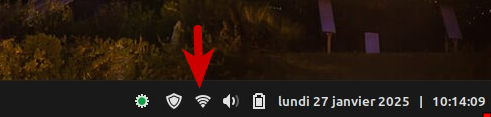
With a wired connection, there is usually nothing to do: the computer connects automatically. To join a Wi-Fi access point — your home router, for example — you simply need to tell the computer which network to use: choose the access point you want to join (you may see several nearby networks), then enter that network’s access key or password. The illustration above shows where to click to connect to your router.
The Cinnamon Desktop environment
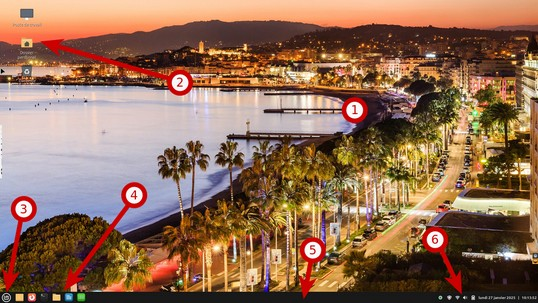
As with any other operating system (Windows or macOS), the Cinnamon (shown above) is made up of:
a background, or wallpaper, which can be one of your own images or photographs, or any picture you choose;
icons placed directly on the Desktop, which can launch applications or take you straight to a particular location in your storage — for example, a shortcut to the “Pictures” folder;
a Menu giving you access to all applications, accessories and system settings;
shortcuts that let you launch the applications you use regularly with a single click;
a taskbar, called the “Panel” in Cinnamon, which among other things shows the applications — and windows — currently open;
status indicators, known as “applets” in Cinnamon, which keep you informed about aspects of the system such as the date and time, network connection, battery status, and so forth;
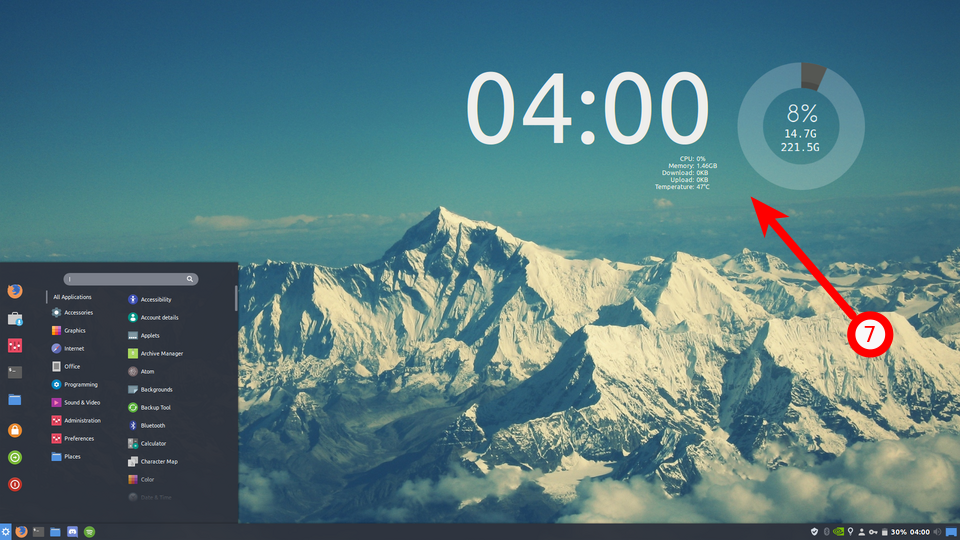
and small gadgets placed directly on the Desktop, such as a clock or weather display. In Cinnamon these are called “Desklets”, as shown below.
The Menu
To open the Menu, click the icon at the bottom-left of the screen, or simply press the keyboard key that usually bears the Windows logo. Under Linux, this key is known as the [SUPER] key.
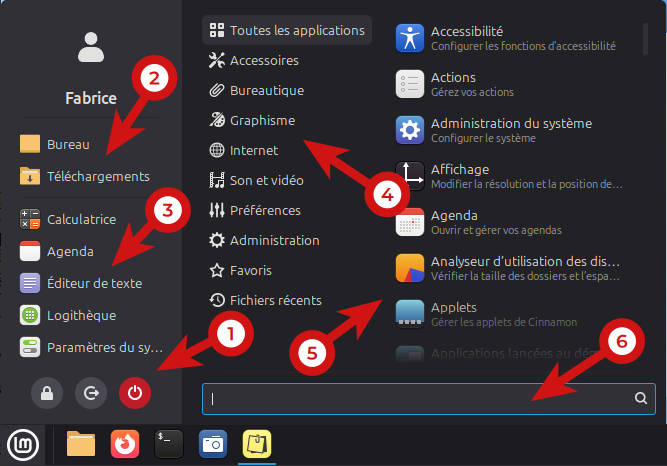
The illustration above shows the Menu when opened. It includes:
- in the area known as the “Sidebar”, buttons for locking your user session, signing out, or shutting down the computer — including power off, hibernation and restart;
- also in the “Sidebar”, shortcuts to your main folders as well as favorite and recently used folders;
- your favorite applications, again in the “Sidebar”;
- applications grouped automatically into categories after installation — Accessories, Office, Graphics, and so on;
- the applications belonging to the selected category, displayed as you move the pointer over it;
- and a search field that can find an application or file from its full name or even the first few letters, as illustrated below.
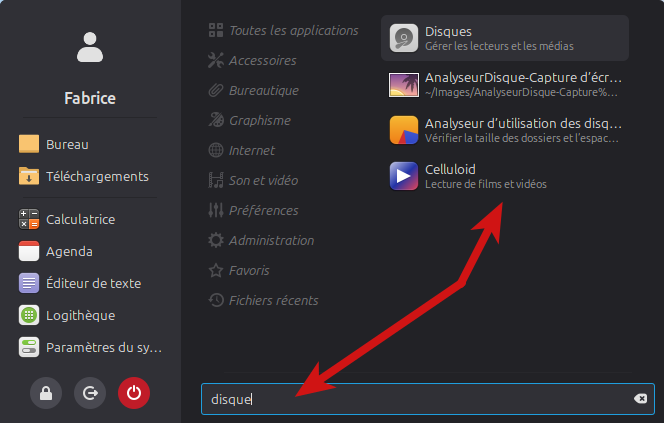
In the illustration above, the French word “disque” is used as a search term. The results include the “Disks” application, a file whose name contains the word, the “Disk Usage Analyzer” application, and even Celluloid because its description contains the same word.
Information This search feature is extremely fast and genuinely useful. It saves you from rummaging through the Menu whenever you need to find something — use it freely!
Applications in the Menu
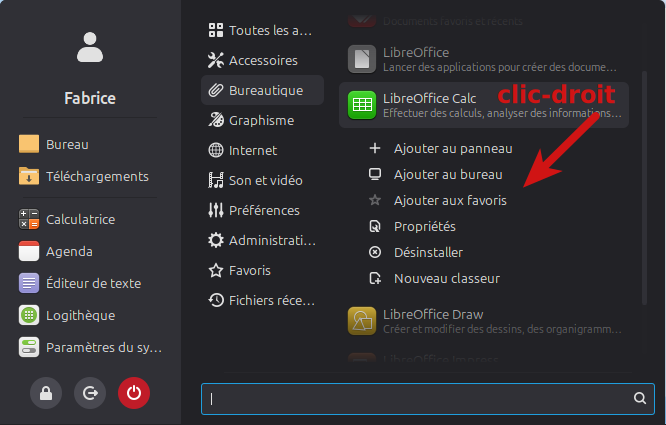
A simple right-click on an application in the Menu gives you access to additional options. These can vary from one application to another, depending on the context.
In the illustration below, right-clicking “LibreOffice Calc” — the spreadsheet application — gives you the following options:
- Add the shortcut to the Panel for faster access
- Do the same, but place the shortcut directly on the Desktop
- Add the application to your list of “favorites”
- View the launcher’s “Properties” (for advanced users)
- Uninstall the application permanently from your computer
- Create a new spreadsheet directly
5. Browsing the Internet
Web browsing is handled by Firefox from the Mozilla Foundation. Firefox is installed by default and is, of course, also available on other operating systems such as Microsoft Windows and macOS.
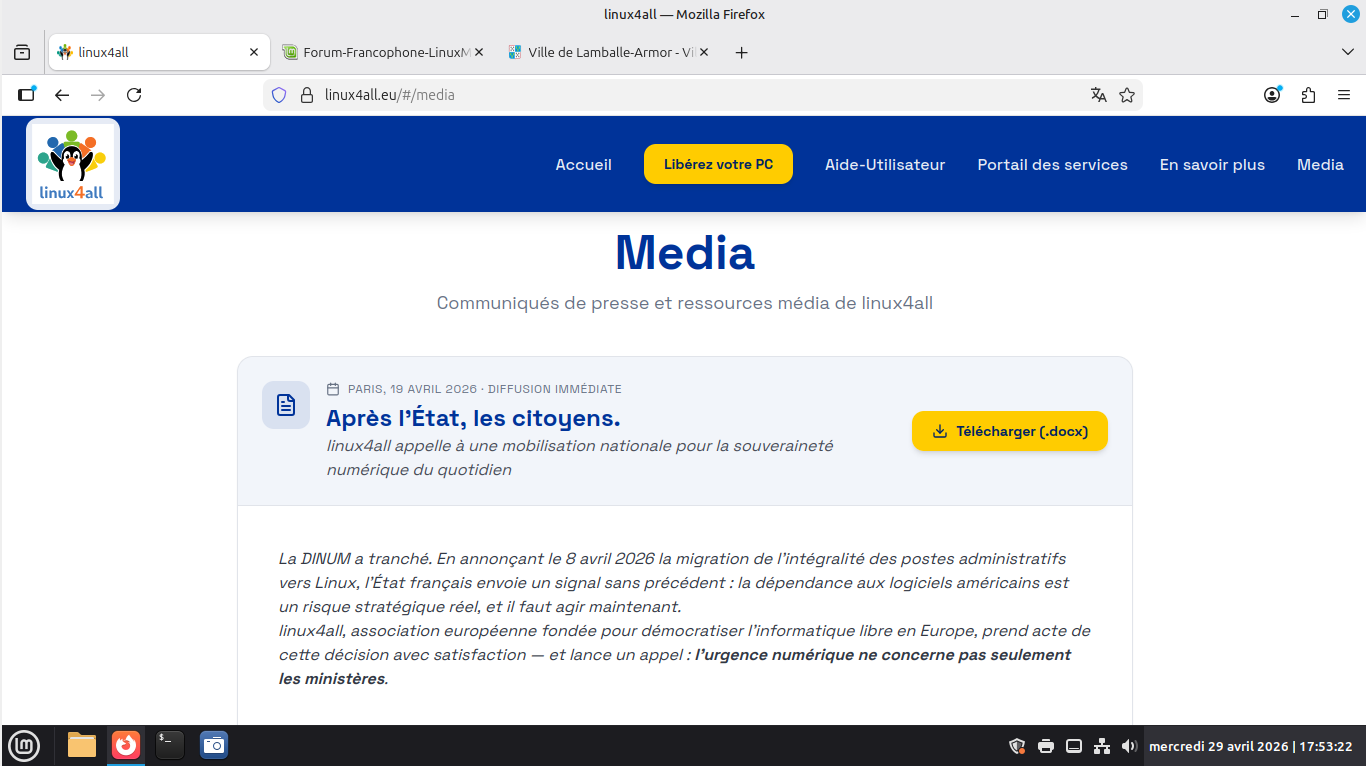
The Firefox browser offers broadly the same features as Google Chrome or Microsoft Edge: tabs, bookmarks (favourites), built-in password storage, extensions, and much more.
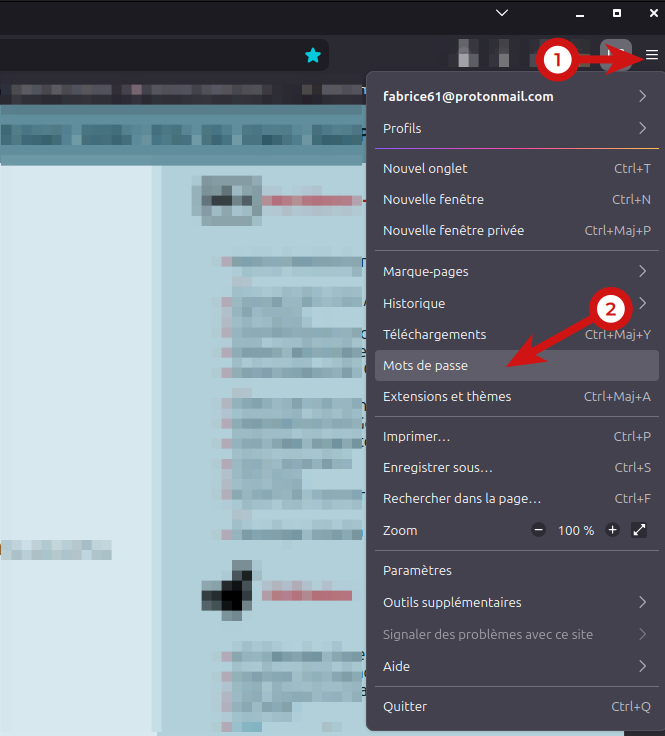
Warning If you use Firefox’s built-in password manager, make sure you protect your password vault with a strong Primary Password. You can configure this from the “Passwords” section of the Firefox menu, as shown below.
The default search engine has been set to Qwant — a French search engine — which produces excellent results while respecting your privacy. You can nevertheless choose another search engine at any time from the Firefox menu.
Ad blocker
Firefox can be equipped with one of the best advertising blockers available, uBlock Origin. You can install this extension from the Firefox menu under “Extensions and Themes”.
6. Office work with LibreOffice
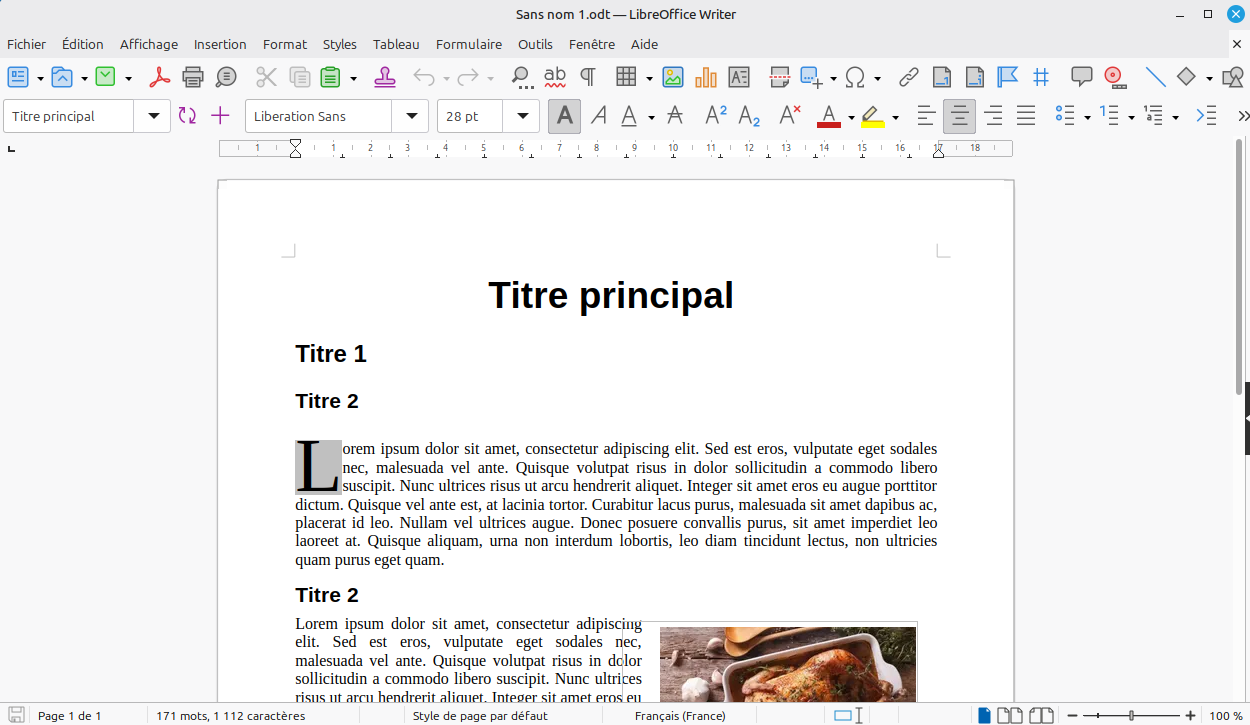
Linux Mint comes with the LibreOffice office suite. This suite is fully available in French and includes several applications:
- a word processor called “Writer”, an alternative to Microsoft Word
- a spreadsheet application called “Calc”, an alternative to Microsoft Excel
- presentation software called “Impress”, an alternative to Microsoft PowerPoint
- a database application called “Base”, an alternative to Microsoft Access
- a drawing application called “Draw”
- an application for editing complex mathematical formulas called “Math”
Official documentation Manuals in French are available here!
Writer
A powerful word processor for everything from quick notes to complete books.
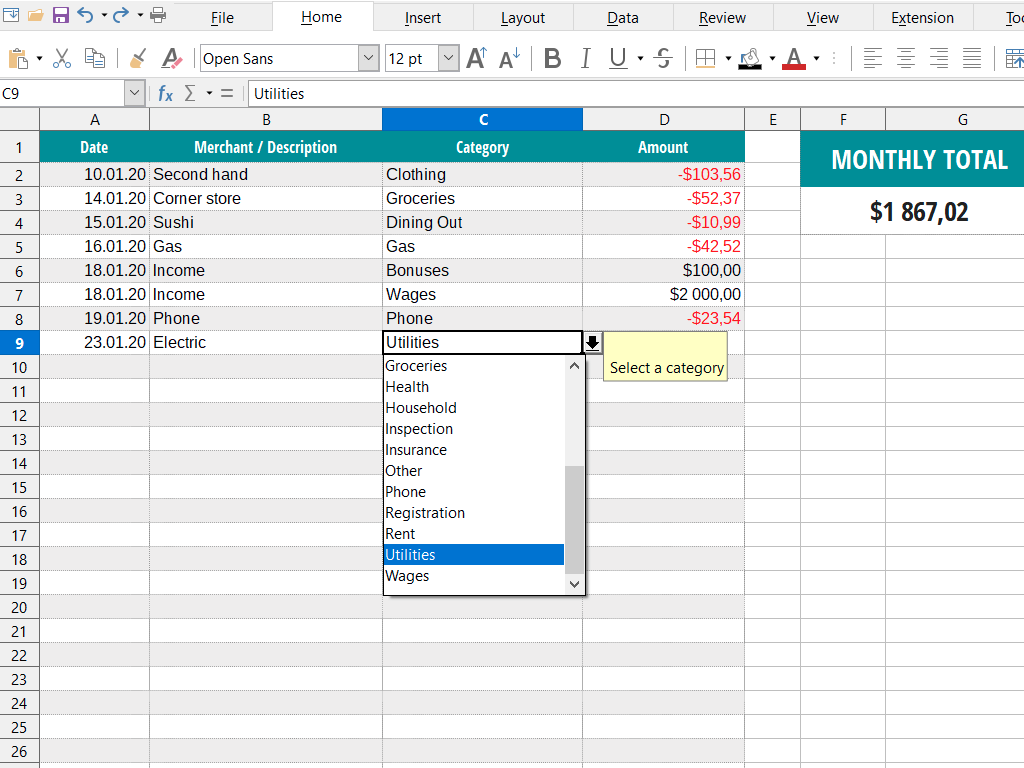
Calc
A feature-rich spreadsheet application for analyzing data, performing calculations and creating clear visualizations.
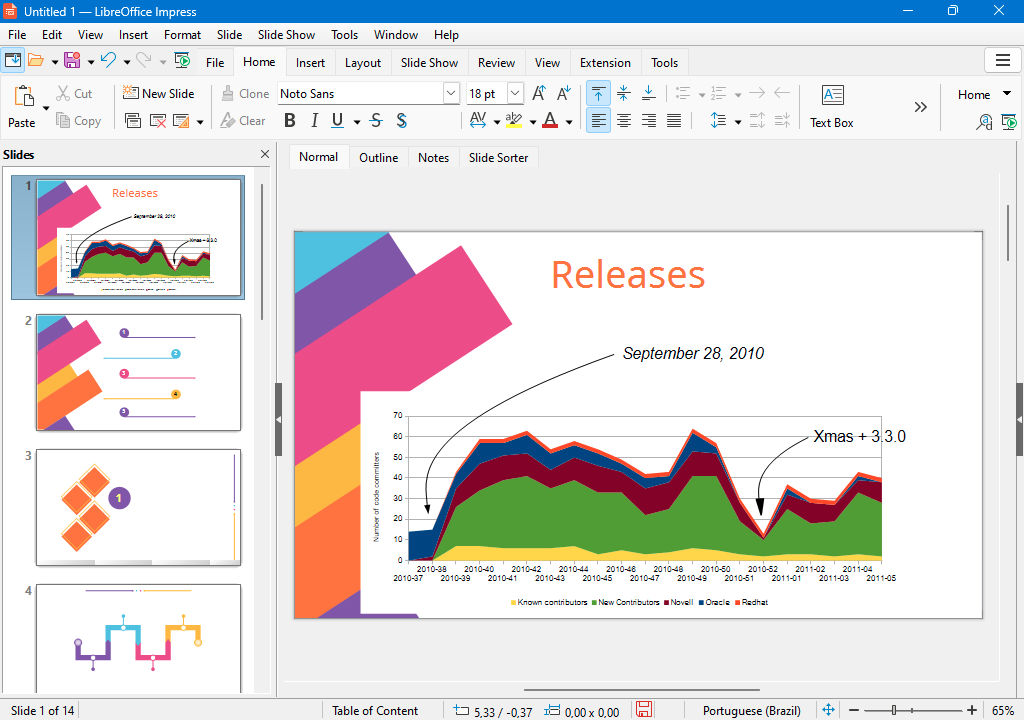
Impress
Create attractive multimedia presentations quickly and easily.
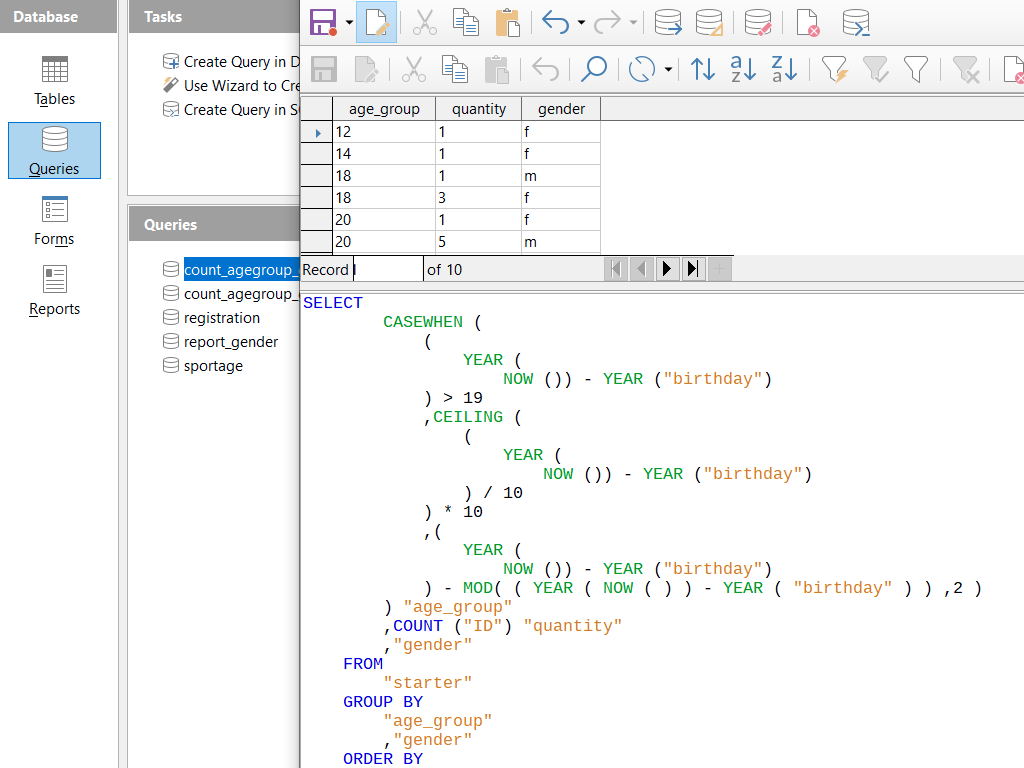
Base
Manage your databases directly: create tables, forms, queries and reports, all in one place.
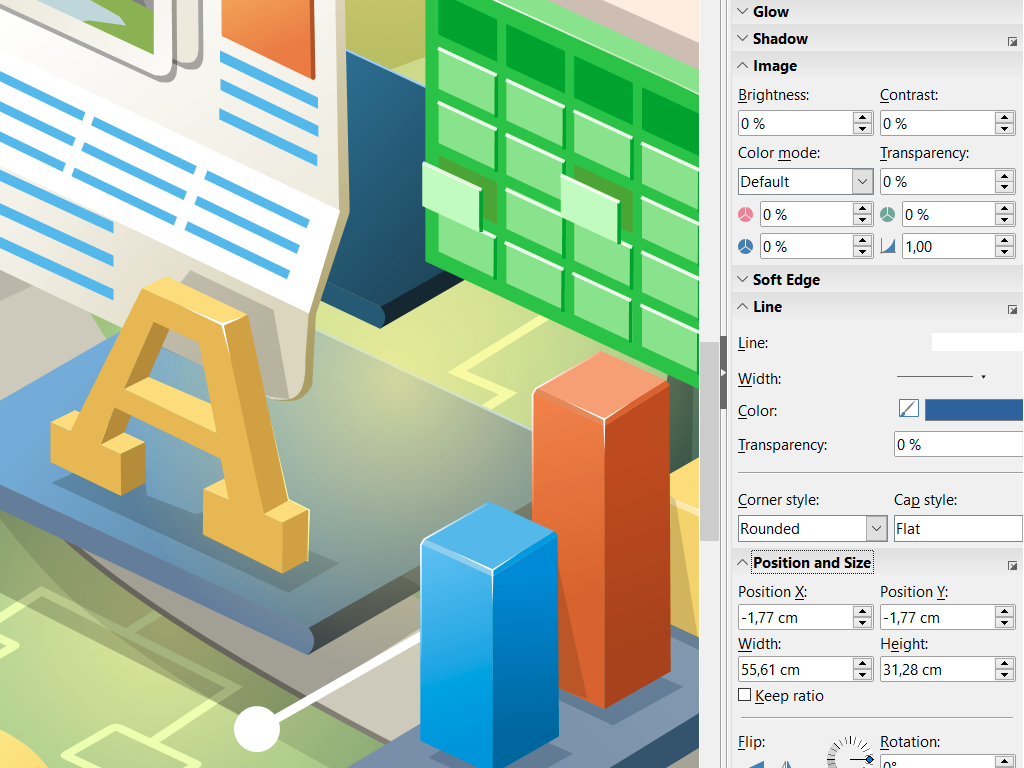
Draw
Create anything from simple diagrams to complex 3D illustrations.
Math
Write mathematical formulas with ease, using either a visual editor or plain text.
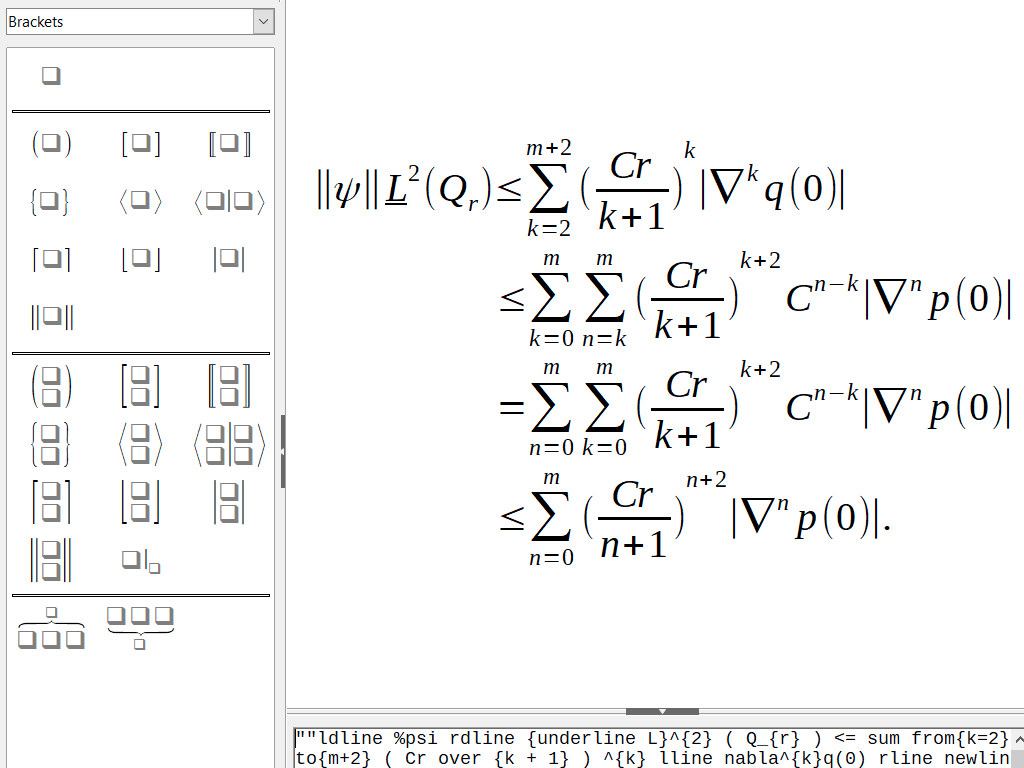
Source: libreoffice.org
7. How do I install new software?
Additional software should be installed through the “Software Manager”, which is available from the Menu.
Warning Do not go searching random websites for software to install. Everything you need is available through the built-in Software Manager, which is an important safeguard for your system.
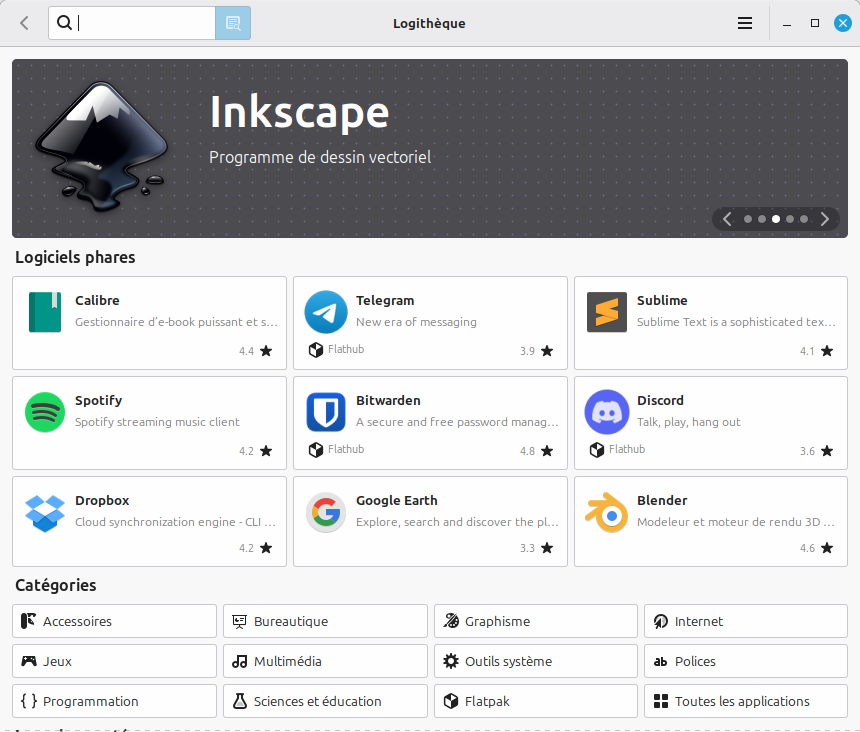
Use the small magnifying-glass icon to search for the software you need. For example, type “Généalogie” (“Genealogy”) and you will find applications to help you start building your family tree.
The process is very simple:
- Use the search field — the magnifying glass — to find software matching your keywords
- Click an application to open its information page
- If the application looks suitable, click [Install] to install it on your computer
- Once installed, it is automatically added to the Menu in the appropriate category
8. How do I install a printer?
Around 99% of printers are detected and installed automatically by Linux, so there is usually very little to do. Just make sure your printer is switched on and connected either to your network over Wi-Fi, to your router by Ethernet cable, or directly to your computer by USB.
If the printer is not detected, open the Menu and search for “printer”. This will take you to the “Printers” management tool; from there, simply follow the prompts.
9. How do I use my scanner?
Many printers also include document-scanning features. If your printer is detected automatically by the system, its scanner will usually be detected as well.
Warning Multifunction printers offer several ways to retrieve scanned documents. You can, for example, save them directly to a USB drive inserted into the printer, or send them to a computer using a feature commonly called “Scan to PC”. That particular feature does not usually work natively with Linux, so you will need to use a slightly different method to retrieve scans directly on your computer, as explained below.
- First, place the document — or documents — in the scanner or printer.
- Return to your computer, find the application called “Document Scanner” in the Menu, and launch it.
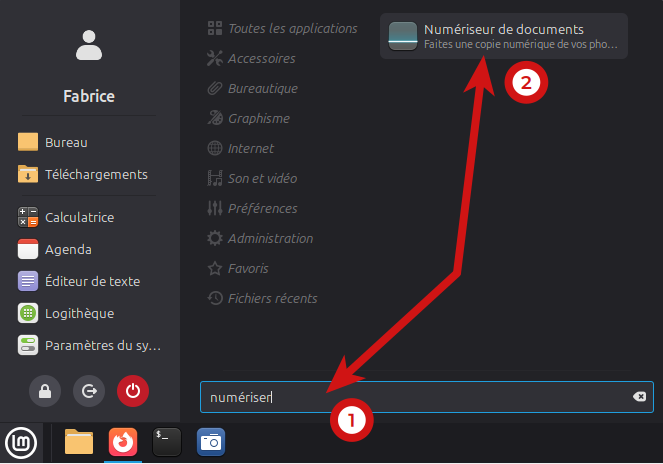
- On the screen below, the scanner is visible and shown as ready. This means the system has correctly recognized it as a scanner and that documents are ready to be scanned.
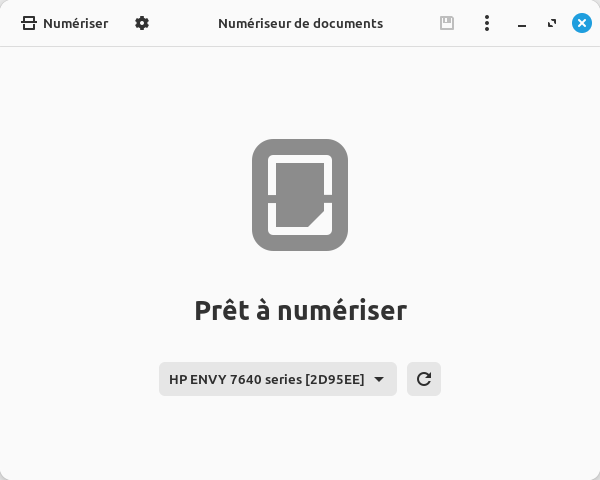
- Choose the settings you need.
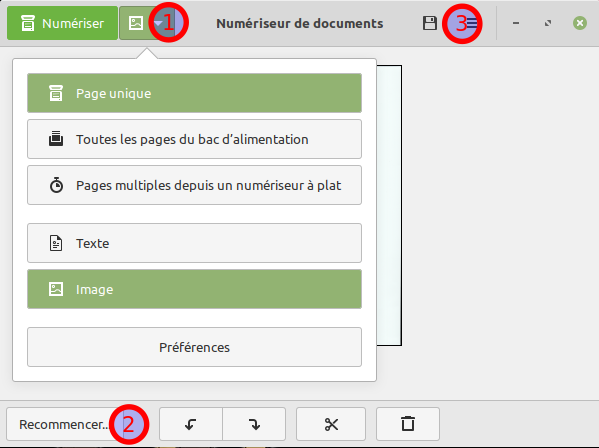
In the illustration above, (1) is the button used to open the scanning settings. Next choose how you want to use the scanner (2), then click [Scan] when you are ready.
If the result is satisfactory, save your work (3). If not, adjust the settings and try again (2).
Information Some printers include an automatic document feeder for scanning. This allows you to scan several sheets in succession and save them together in a single PDF file, for example.
10. Using external storage
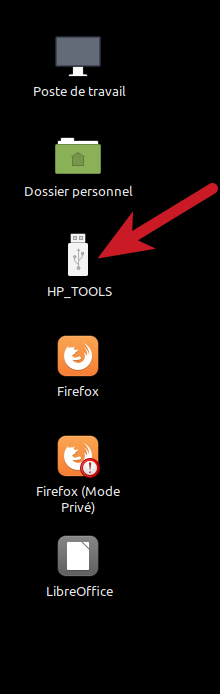
When you connect an external storage device — a USB flash drive, hard drive, smartphone, and so on — an icon representing it will appear directly on the Desktop. Double-click the icon to browse its contents. Before unplugging the device, right-click its icon and select “Eject” so that you do not risk losing data you have just copied to it.
11. Keeping the system up to date
Updates are frequent on a Linux system — and they can be automated — but unlike on Microsoft Windows:
- they are usually very quick to install;
- they do not prevent you from continuing to work, although the computer may be a little slower while they run;
- they update the operating system as well as all installed applications. Note: in a few cases — for example, after a Linux kernel update — you will be asked to restart the computer.
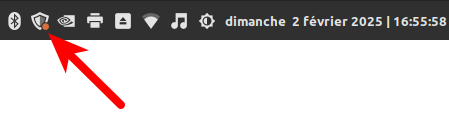
To see whether updates are available, look at the Panel, as shown below. A small shield icon indicates the update status. If it displays an orange dot, updates are waiting: simply click the icon and follow the instructions.
Warning Install updates whenever you can. They are essential to the stability and security of your system, fixing a wide range of problems, including security vulnerabilities. If you update regularly — once a week, for example — the process usually takes only three or four minutes.
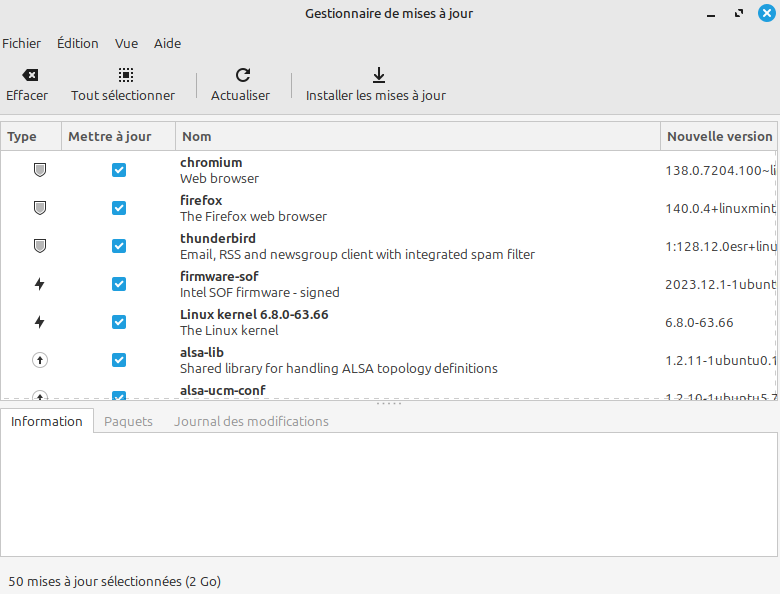
When you start the update process, the system displays a list of the software and other components that will be updated, as shown below. Unless you are an experienced user, there is no need to study this list: simply let the system install all the proposed updates by clicking [Install Updates].
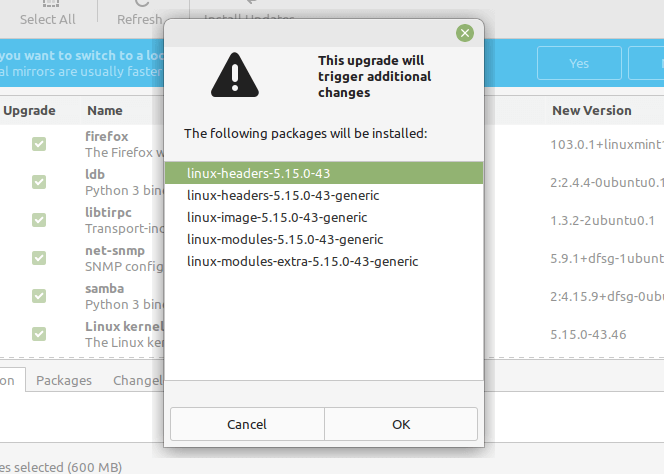
Note: in some cases, a second screen may appear before the update begins, as shown below. This screen is intended for very experienced users, so there is no need to dwell on it; simply click [OK].
12. Security on Linux
Security is one of Linux’s strengths. Although antivirus software exists for Linux, installing it is generally unnecessary except in particular circumstances.
Whenever you ask the computer to perform an operation that affects the system itself, you will be asked for your password. This is the same password you use to sign in when the computer starts. Operations that may require your password include:
- installing or uninstalling software or peripherals;
- installing new software or hardware components;
- updating the system;
- and other system-level changes.
Tips
Accented capital letters
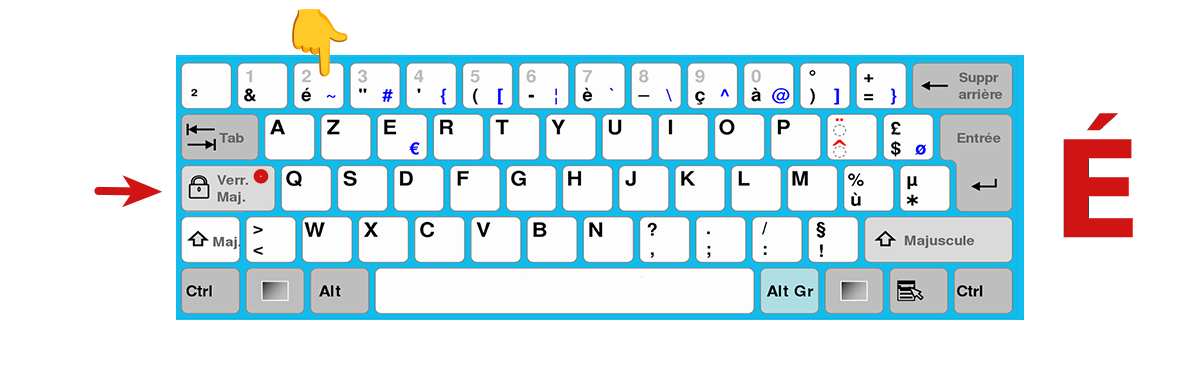
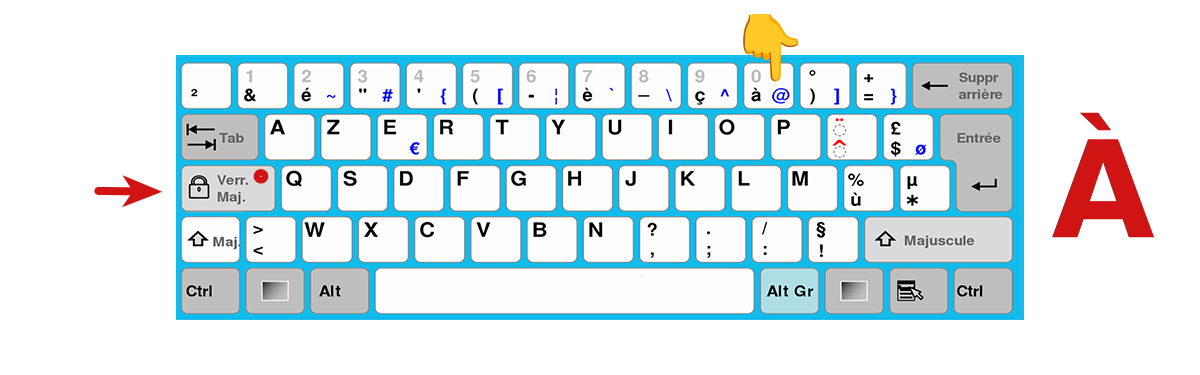
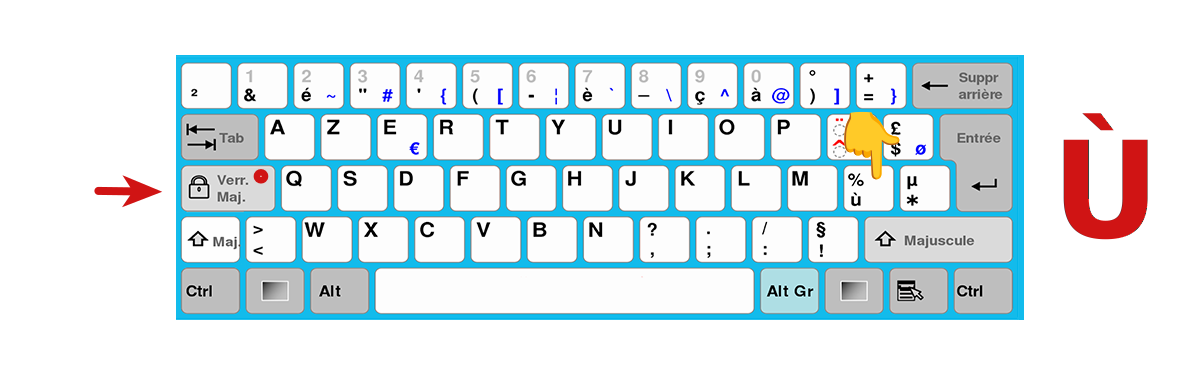
Unlike Windows, on a French AZERTY keyboard the [CAPS LOCK] key gives you access to the accented capital letters on the top row, as well as Ù; it does not switch that row to numbers.
Examples:
This document is distributed under the Creative Commons CC BY-NC-SA 4.0 license. To learn more, 🔗click here!